
How to Geocode a Spreadsheet of Addresses in Excel: A Complete Guide
Learn how to geocode addresses in Excel and turn your spreadsheet into map-ready data with corrected addresses and latitude and longitude. Upload to Geocodio for free, use the API, or try Excel add-ins.
Quick Answer: How can you geocode a spreadsheet?
The fastest way to geocode addresses from Excel or Google Sheets is to upload the spreadsheet directly to Geocodio. The first 2,500 lookups per day are free. No API key, no add-in, no code required.
For larger or ongoing projects, Geocodio also offers a REST API and a command-line tool for geocoding CSVs that can handle millions of addresses.
Geocoding is the process of converting a text address (like "1600 Pennsylvania Ave NW, Washington, DC 20500") into geographic coordinates (latitude and longitude). Those coordinates let you plot addresses on a map, calculate distances, run spatial analysis, or connect your data to Census and government datasets.
The reverse also works. Reverse geocoding converts coordinates back into a street address. If you have GPS data or latitude/longitude pairs, you can turn them into readable addresses.
A lot of address data already lives in spreadsheets. Customer lists, property records, survey responses, delivery manifests, patient records, voter files. Geocoding that data where it already lives means you can go from "a list of addresses" to "map-ready data" without switching tools or learning new software.
Geocode Your Spreadsheet with Geocodio via File Upload
Best for: Any list size, from 10 addresses to 10 million. No code required.
This is the simplest method. Export or save your Excel file, upload it, and get coordinates back in minutes.
Step 1: Format your addresses
Each column in your spreadsheet needs a header. Geocodio accepts addresses in a single column or split across multiple columns.
Your addresses do not need to be complete. A city and state alone will return results. A ZIP code alone will also work. More complete addresses produce more precise results. Geocodio will complete and spelling-correct the addresses.
We'll leave all of your existing columns alone and will only add rows, so you can leave identifiers and other details in your spreadsheet. (However, for general data hygiene reasons, it's best to only submit as much as needed for geocoding.)
| 660 Pennsylvania Ave SE | DC | 20003 | |
|---|---|---|---|
| 1600 Ampitheater Parkway | Mountain View | CA |
| 660 Pennsylvania Ave SE, DC 20003 |
|---|
| 1600 Amphitheatre Parkway, Mountain View, CA |
Tips: How to Prepare Your Spreadsheet for Geocoding
Good input produces good output. A few minutes of cleanup before geocoding can save time and improve accuracy.
Do
- Include column headers. Name them clearly: "Street," "City," "State," "ZIP," or "Address."
- Keep formatting consistent. Either put the full address in one column or split it across columns. Don't mix formats.
- Include as much of the address as you have. Street, city, state, and ZIP is ideal. But partial addresses work too.
- Remove extra whitespace. Excel's
TRIM()function cleans this up quickly. - For Canadian addresses, include "Canada." Geocodio needs this to distinguish between U.S. and Canadian addresses.
Don't
- Don't merge cells. Merged cells cause problems with almost every data tool, not just geocoding.
- Don't include non-address data in address columns. Notes, names, or descriptions mixed into the address column will confuse the geocoder.
- Don't worry about capitalization or abbreviations. "123 main st" and "123 Main Street" both work fine.
For a full formatting guide, see Preparing Your Spreadsheet.
Step 2: Upload the spreadsheet of addresses you want to geocode to Geocodio
Go to geocod.io/upload and drag your file onto the page. You can geocode .xlsx, .xls, .csv, .tsv, and .zip files up to 1 GB with Geocodio. That's roughly 10 million rows in a single upload.
Geocodio will try to auto-detect which columns contain address data. Review the column mapping and adjust if needed.
A small sample of your data is geocoded on the spot so you can verify the results look right before processing the full file.
Step 3: Join data (optional)
This is where spreadsheet geocoding gets interesting. Beyond latitude and longitude, Geocodio can append additional data fields to each row in the same request, meaning you won't need to manually join data later:
These are selected during the upload process and added as extra columns:
Census data: FIPS codes for blocks, tracts, and more, ACS demographics, household income, education levels, population
Congressional districts and state legislative districts
School districts
Timezones
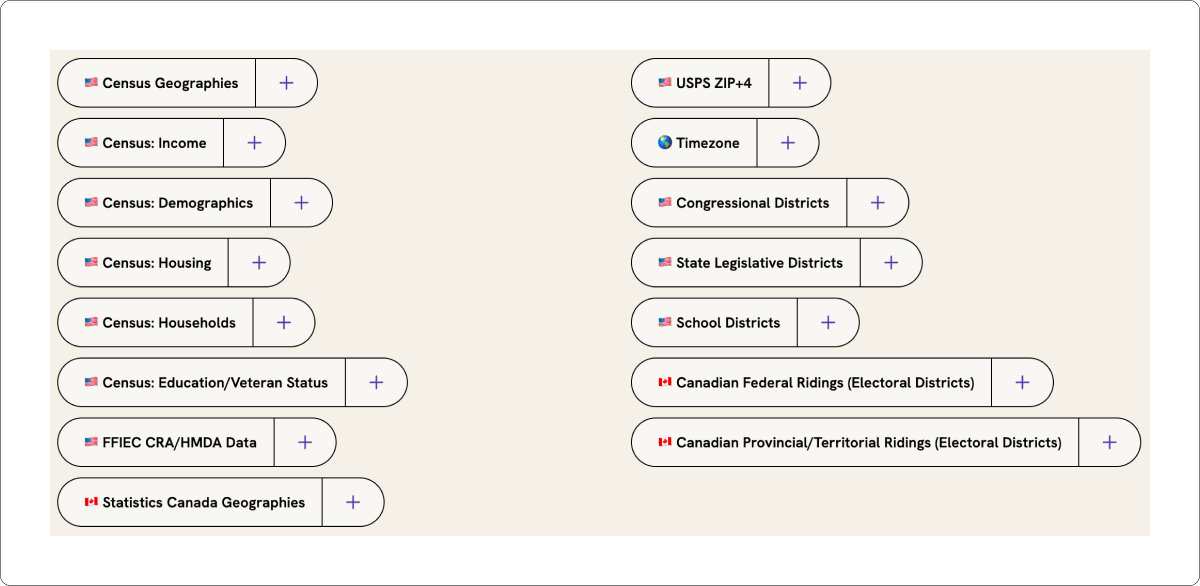
If you don't need any of this, just click to continue.
Step 4: Download your geocoded spreadsheet
Most spreadsheets finish processing in a few minutes. We'll send you an email when the file is ready, so there is no need to wait on the page.
The output file includes all of your original columns plus the new ones: latitude, longitude, a standardized version of the address, an accuracy score, and any data appends you selected.
When Geocodio processes your spreadsheet, it adds columns to your original data. Nothing is deleted or overwritten. Here is what comes back:
Latitude and Longitude: Decimal degree coordinates for each address.
Standardized address: A cleaned-up, USPS-formatted version of each address. This catches typos, fills in missing ZIP codes, and normalizes abbreviations.
Accuracy score: A value from 0 to 1 indicating how confident Geocodio is in the result.
Accuracy type: Whether the result matched at the rooftop, range interpolation, street, city, state, or ZIP code level.
Learn more about accuracy types.
If you've used Excel before, you're probably familiar with how it can shrink numbers. But we just want to note:
Excel will automatically strip the leading zeroes from ZIP codes, reducing 02864 to 2864. You'll want to adjust this in your formatting.
Excel will reduce 15-digit FIPS codes. This is another formatting setting to check.
Geocode with the Geocodio API using Power Query
Best for: Recurring geocoding tasks where you want the process built into an Excel workflow.
Power Query is Excel's built-in data transformation tool (available in Excel 2016 and later, and Microsoft 365). You can use it to call Geocodio's API for each address in your spreadsheet.
How it works
1. Get a free API key at dash.geocod.io.
2. In Excel, select your address table and go to Data > From Table/Range to open the Power Query Editor.
3. Create a custom column that builds a Geocodio API URL for each row. For example:
https://api.geocod.io/v2/geocode?q=" & [Address] & "&api_key=YOUR_API_KEY4. Use Add Column > Invoke Custom Function to call the URL for each row and parse the JSON response.
5. Expand the returned latitude and longitude fields into new columns.
When to use PowerQuery with Geocodio for geocoding
Power Query is a good fit if you geocode a similar list on a regular schedule (like monthly reporting) and want to refresh the data without leaving Excel. The setup takes some time, but once configured, it runs with a click.
For one-off lists, the spreadsheet upload tool is faster to set up.
Excel Add-ins
Best for: Users who want geocoding built into the Excel ribbon.
Several third-party add-ins bring geocoding directly into Excel or Google Sheets. You install the add-in, select your address columns, and click a button.
Things to consider with add-ins
API key required: Most add-ins connect to a geocoding API (Google, Bing, or another provider) and require an API key. This means creating an account with that provider and managing billing separately.
Terms of service: Some providers restrict how you can store or use the results. Google's Geocoding API, for example, requires that geocoded data be used with a Google Map. Read the terms before committing to a workflow.
Windows only: Many VBA-based add-ins only work on Windows versions of Excel.
Rate limits: Free tiers on most geocoding APIs are limited. Google provides a $200 monthly credit (roughly 40,000 lookups), and you can't store the results. Nominatim (OpenStreetMap) limits requests to one per second.
Beware of refresh behavior
Some add-ins, especially for Google Sheets, re-run the API requests every time you open the spreadsheet. This can make costs skyrocket as you'll end up paying for the same data again and again. To prevent this, you'll need to build a custom workflow that saves geocoded addresses as plain text and only submits queries for new rows.
Geocodio's approach
Geocodio does not offer an Excel add-in. Instead, Geocodio's spreadsheet upload tool handles the same job without requiring installation, API keys, or platform-specific software. It works from any browser, on any operating system, with files up to 1 GB. You can also submit CSVs via API.
Excel's Built-in Geography Data Type
Best for: Quick lookups on small, clean datasets. Microsoft 365 only.
If you have a Microsoft 365 subscription, Excel has a built-in Geography data type that can recognize locations and return geographic information.
How it works
1. Enter your locations in a column (city and state, or a complete address).
2. Select the cells and go to Data > Geography.
3. Excel will try to match each cell to a known location and convert it to a "Geography" data type.
4. Click the small icon next to the cell to see available fields, including latitude and longitude.
Limitations
Works best with well-known place names (cities, countries, landmarks). Street-level addresses often fail to resolve.
Requires an internet connection.
No batch processing. Each cell is resolved individually.
Does not return Census data, FIPS codes, or other enrichment fields.
Not available in all Excel versions.
This method is fine for a handful of city-level lookups. For street-level geocoding or lists longer than a few dozen rows, a dedicated geocoding tool will produce better results.
VBA Macros with a Geocoding API
Best for: Technically-inclined Excel users who want full control over the process within Excel.
You can write a VBA macro that sends each address to a geocoding API, parses the response, and writes the coordinates back into your spreadsheet.
How it works
1. Open the VBA Editor (**Alt + F11**).
2. Write a function that constructs an API URL, sends an HTTP request, and parses the JSON or XML response.
3. Call the function from a cell, or loop through a range of addresses.
Things to keep in mind
Windows only. The MSXML2 library used for HTTP requests is not available on Mac.
Rate limits. You will need to add delays between requests to stay within the API provider's rate limits.
Error handling. Addresses that fail to geocode will need a fallback or manual review.
Maintenance. If the API changes, you will need to update the macro.
Tips for Working with Addresses and Geocodes in Excel
ZIP code formatting
Excel treats ZIP codes as numbers by default. This means it strips leading zeroes: "02864" becomes "2864." Before opening your geocoded file, format the ZIP code column as text. Or open the CSV in Excel using the Text Import Wizard and set the ZIP column to "Text."
FIPS code formatting
The same issue applies to FIPS codes. A 15-digit FIPS code exceeds Excel's numeric precision limit, so Excel will round or truncate it. Set the column format to "Text" before importing.
Large file handling
Excel has a row limit of roughly 1,048,576 rows. If your geocoded output is larger than that, use the CSV format and open it in a tool that handles larger files, like Google Sheets, a database, or a programming language like Python or R.
Accuracy filtering
Use Excel's filter or sort features on the "accuracy score" and "accuracy type" columns to find rows that may need manual review. Rows with an accuracy type of "place" or "state" were matched to a general area rather than a specific address.
Common Questions
Geocodio accepts Excel files (.xlsx and .xls) directly through the spreadsheet upload tool at geocod.io/upload. There is no need to convert to CSV first.
If you want to geocode with Geocodio from within Excel, follow the steps above to integrate the Geocodio API with Power Query or VBA.
Geocodio's spreadsheet geocoding tool accepts files up to 1 GB, which typically means about 10 million rows. You can upload multiple files one after another and run them at the same time.
For lists larger than 10 million, please contact support for advice managing the upload.
Geocodio's self-service platform has a pay-as-you-go option. The first 2,500 lookups per day are free, with no credit card required. Beyond that, pricing starts at $1.00 per 1,000 lookups.
For Enterprise, you can create a demo account to geocode up to 100 addresses.
Yes. Any spreadsheet saved as .xlsx, .xls, .csv, or .tsv works. That includes files from Google Sheets, Apple Numbers, OpenOffice Calc, and LibreOffice Calc.
Geocodio supports forward and reverse geocoding for U.S. and Canadian addresses, and reverse geocoding for Mexican addresses. For Canadian addresses, include "Canada" in the address or in a separate country column.
Geocodio does not currently support countries outside North America.
Yes. Geocodio does not restrict how you store or use the results. There are no requirements to display results on a specific map provider or delete cached data after a set period.
Geocoding turns an address into coordinates. Reverse geocoding turns coordinates into an address. Geocodio's spreadsheet tool supports both. If your spreadsheet has latitude and longitude columns instead of addresses, Geocodio will detect that and reverse geocode automatically.
Accuracy depends on the quality of the input address. A complete, well-formatted address will typically return a rooftop-level result. A partial address (like a city and state with no street) will return a less precise result. Geocodio includes an accuracy score and accuracy type with every result so you can assess quality row by row.
Common Questions
Geocodio accepts Excel files (.xlsx and .xls) directly through the spreadsheet upload tool at geocod.io/upload. There is no need to convert to CSV first.
If you want to geocode with Geocodio from within Excel, follow the steps above to integrate the Geocodio API with Power Query or VBA.
Geocodio's spreadsheet geocoding tool accepts files up to 1 GB, which typically means about 10 million rows. You can upload multiple files one after another and run them at the same time.
For lists larger than 10 million, please contact support for advice managing the upload.
Geocodio's self-service platform has a pay-as-you-go option. The first 2,500 lookups per day are free, with no credit card required. Beyond that, pricing starts at $1.00 per 1,000 lookups.
For Enterprise, you can create a demo account to geocode up to 100 addresses.
Yes. Any spreadsheet saved as .xlsx, .xls, .csv, or .tsv works. That includes files from Google Sheets, Apple Numbers, OpenOffice Calc, and LibreOffice Calc.
Geocodio supports forward and reverse geocoding for U.S. and Canadian addresses, and reverse geocoding for Mexican addresses. For Canadian addresses, include "Canada" in the address or in a separate country column.
Geocodio does not currently support countries outside North America.
Yes. Geocodio does not restrict how you store or use the results. There are no requirements to display results on a specific map provider or delete cached data after a set period.
Geocoding turns an address into coordinates. Reverse geocoding turns coordinates into an address. Geocodio's spreadsheet tool supports both. If your spreadsheet has latitude and longitude columns instead of addresses, Geocodio will detect that and reverse geocode automatically.
Accuracy depends on the quality of the input address. A complete, well-formatted address will typically return a rooftop-level result. A partial address (like a city and state with no street) will return a less precise result. Geocodio includes an accuracy score and accuracy type with every result so you can assess quality row by row.
Related Resources
Upload a Spreadsheet
Upload a spreadsheet of up to 2,500 addresses or coordinates. No credit card required to try.