
Guides
for everything Geocodio
Guides
Add & Remove Team Members
Guides
for everything Geocodio
Add & Remove Team Members
Inviting Team Members
Owners and Admins can invite team members from the Team page on the dashboard.
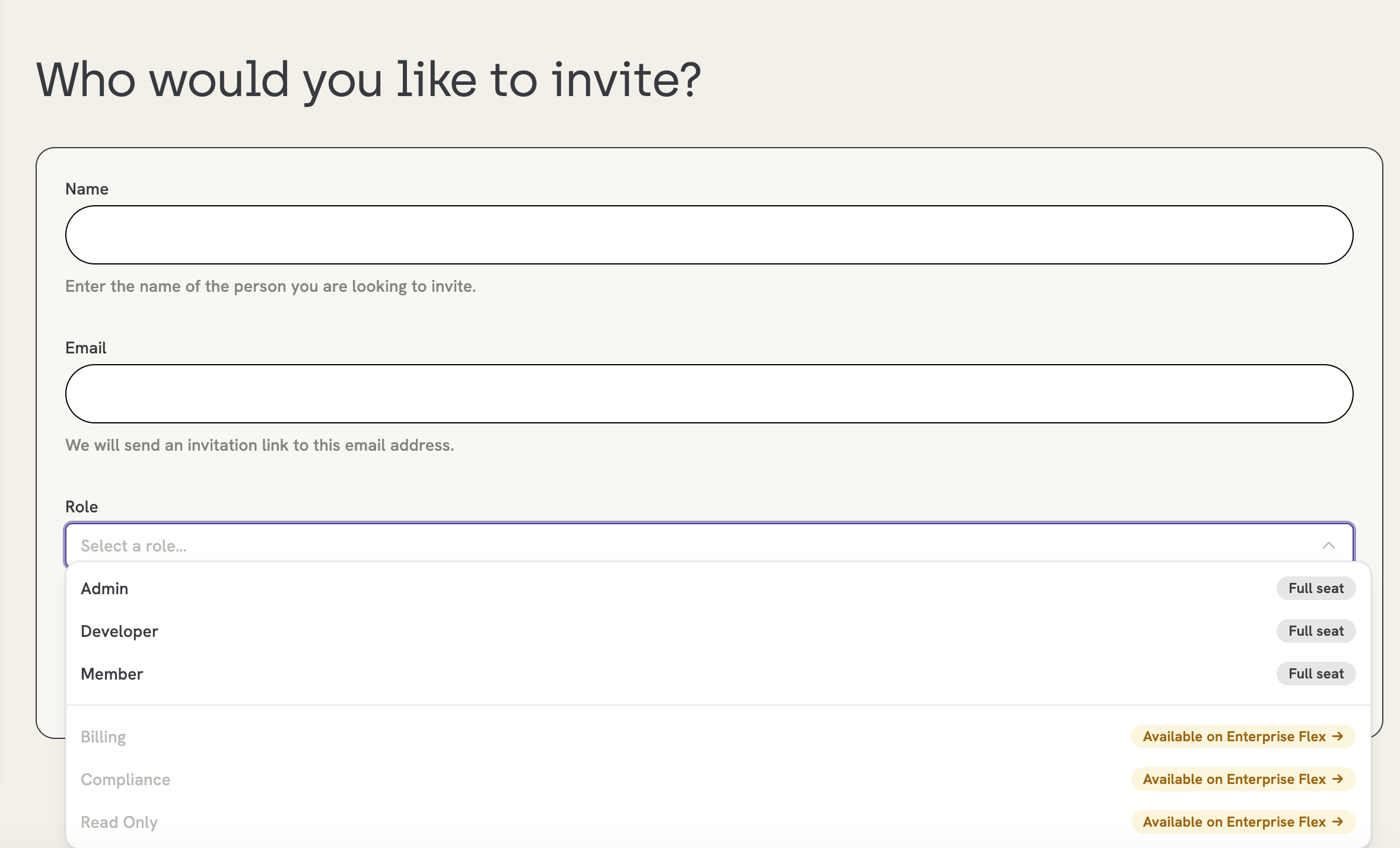
Pick a role at invite time. The dashboard displays whether that role is a Full seat (billed) or a Lite seat (free).
One user is invited at a time.
Invitations expire after 14 days.
If it’s a billable seat (Full seat), you won’t be charged until they accept the invitation.
Inviting someone who already has a Geocodio account
A few things to know about this:
If the person has an active paid subscription, they’ll need to cancel it and let it run out before accepting. We can’t transfer a subscription mid-cycle.(They’re welcome to change their email address to another email. Their desired email can then be invited to your account.)
If they have a credit balance on their account, those credits transfer to your team’s Owner when they join. They’ll see a message to confirm during invite acceptance.
If they’re currently on another team, they leave that team and join yours in one step upon accepting your invite. We’ll show them a confirmation before anything changes.
Removing a Team Member
When you remove a team member, here’s what happens to their Geocodio items:
API keys: Deactivated immediately. Deactivated keys remain visible in the dashboard for 30 days (marked deactivated) before they’re purged.
Spreadsheets: Reassigned to the team Owner. The removed user loses access.
Maps: Reassigned to the team Owner.
Credits: Any remaining credit balance transfers to the Owner.
The user account itself: Hard-deleted.
The removed person gets an email letting them know they’ve been removed and that their API keys are deactivated. The team Owner and Admins get a notification listing the resources that were reassigned.
Transferring Ownership
Each team has exactly one Owner, and the Owner is the only person who can make someone else the Owner or delete the team account.
To transfer ownership:
The current Owner picks a team member to become the new Owner.
The new Owner accepts the transfer.
Once accepted, the new Owner takes on the full Owner role and the previous Owner moves to whichever role you assign them. Credit balance and usage history move with ownership.
Warning
Owner is the only role with delete-account permission, so make sure the new Owner is someone you trust to make that call
What happens during a plan downgrade
If you downgrade to a plan that doesn’t support all the roles your team is currently using, you’ll need to handle the affected members before the downgrade can go through.
For example: Self-Serve Flex doesn’t include the Compliance role. If you’re on Enterprise Flex with two Compliance role users and you try to switch to Self-Serve Flex, you’ll need to reassign those users to a new role or remove them from the team. Once you’ve handled it, the downgrade proceeds.