
Guides
for everything Geocodio
Guides
Geocode a Spreadsheet
Guides
for everything Geocodio
Geocode a Spreadsheet
Summary
This guide to the new spreadsheet upload flow (launched May 2026) walks you through uploading, previewing, picking data appends, and creating an account in four clearly numbered steps. The flow includes a running cost estimate, an interactive map preview, and side panels that explain what each data append adds before you select it. Everything you could do in the old flow, you can still do here.
If you've geocoded a spreadsheet with Geocodio before, you know the drill: upload, match columns, preview, pick appends, go.
The new flow keeps every one of those steps but rethinks how they're presented, with clearer cards, an improved preview map experience, a cost estimator that updates as you click, and fewer "what does this option do?" pop-ups.
Like before, all of your existing columns will be retained. The data output is the same.
Brand new to Geocodio? You can follow along from start to finish without needing the old context.
Spreadsheet formatting guidance
Before you get started, we suggest you look at our spreadsheet formatting guide. You can download a sample spreadsheet here.
Step 1: Choose how to bring your data in
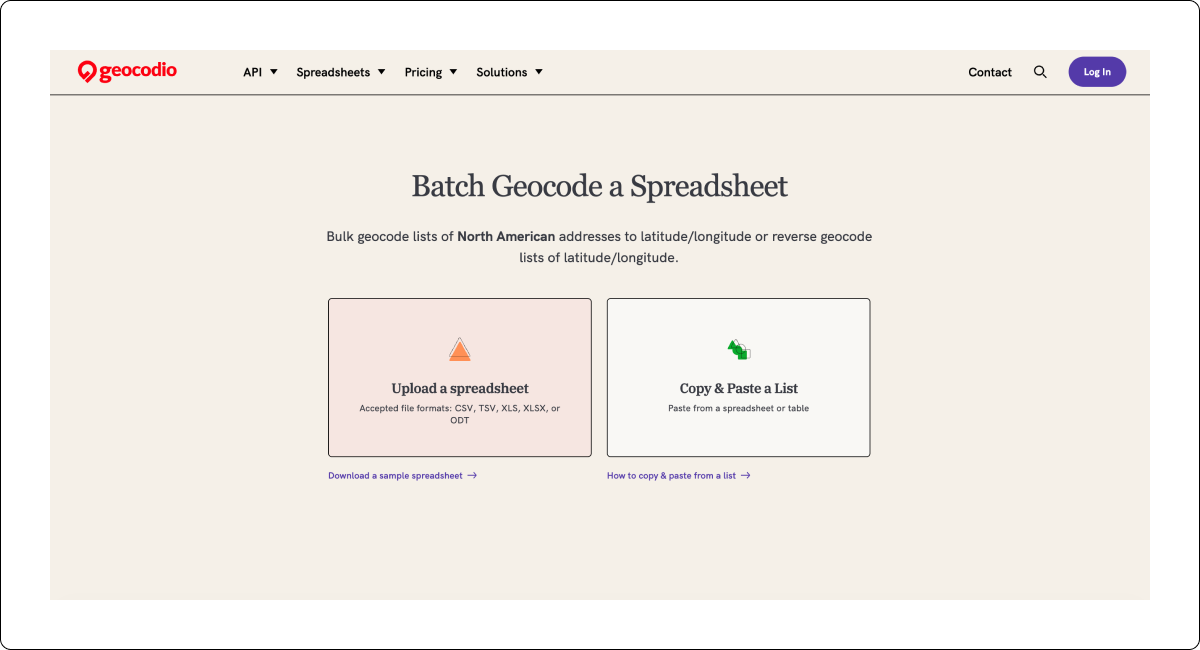
Head to geocod.io/upload and you'll see two big illustrated cards: Upload a spreadsheet (csv, tsv, xls, xlsx, odt) or Copy & Paste a List.
Underneath each, there's a quick helper link: "Download a sample spreadsheet" or "How to copy & paste from a list." For this guide, we are choosing Upload a spreadsheet.
Note
If you use the Copy & Paste option, make sure you copy the headers, too.
Step 2: Pick a direction (forward or reverse)
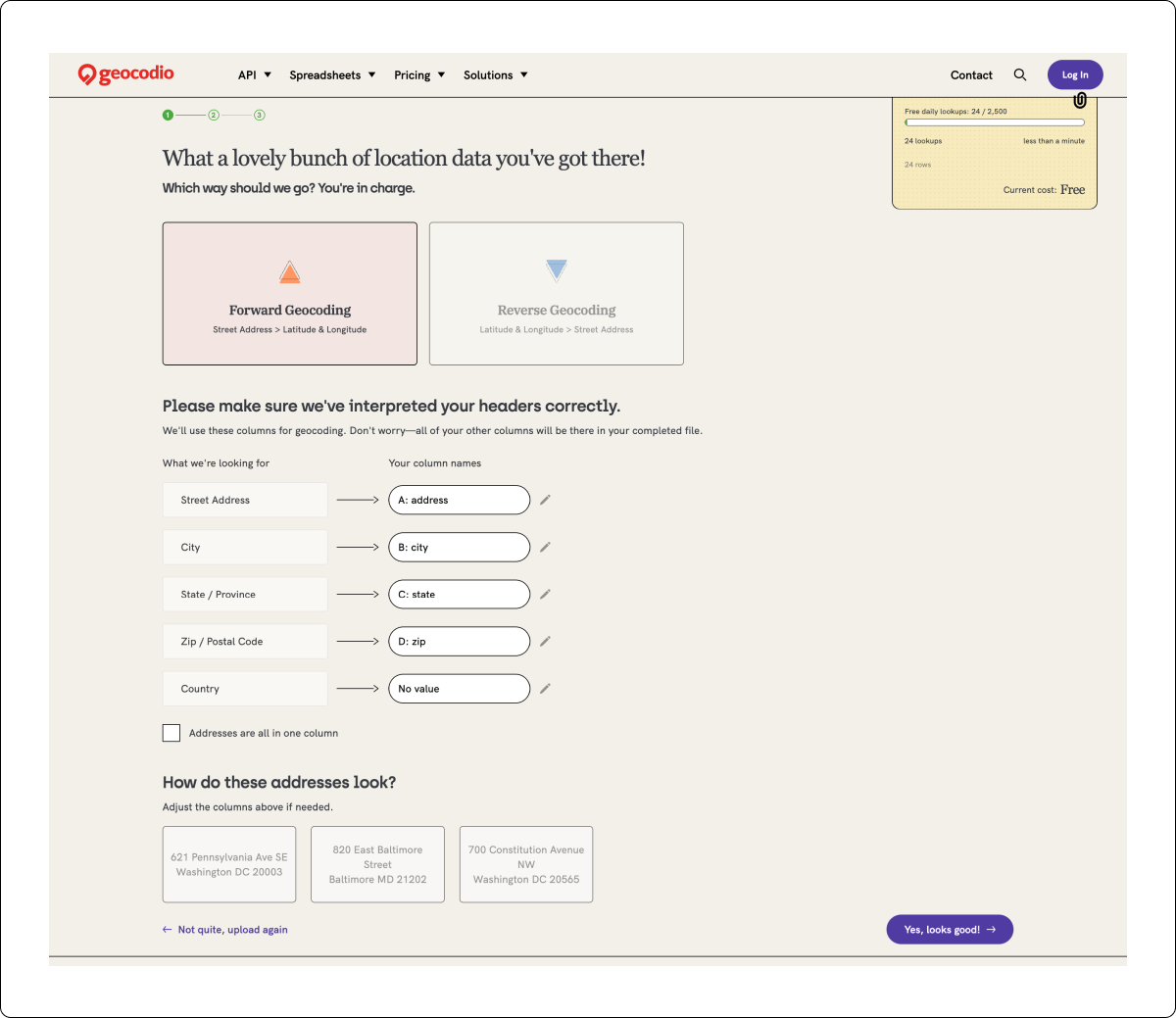
After your file uploads, you'll land on a page asking "Which way should we go?" — Forward Geocoding (street address → lat/long) or Reverse Geocoding (lat/long → street address).
Pick one and you’ll be taken to the next step.
Step 3: Match your columns
This is where you tell us which of your columns is the street, which is the city, and so on. Each row shows what we're looking for on the left and your column on the right. You can edit the column name if you’d like.
If your addresses are in a single column (e.g., 660 Pennsylvania Ave SE, Washington, DC 20003), use the "The address is all in one column" checkbox right below.
How do these addresses look?
Three sample addresses are pulled from your file so you can check before moving on. This will help you spot any potential formatting issues before proceeding.
What's new
The column matching step is clearer. The old flow had columns side-by-side without a visual handoff. The checkbox for a single-column spreadsheet is also easier to find.
Step 4: Preview the geocoded sample on a map
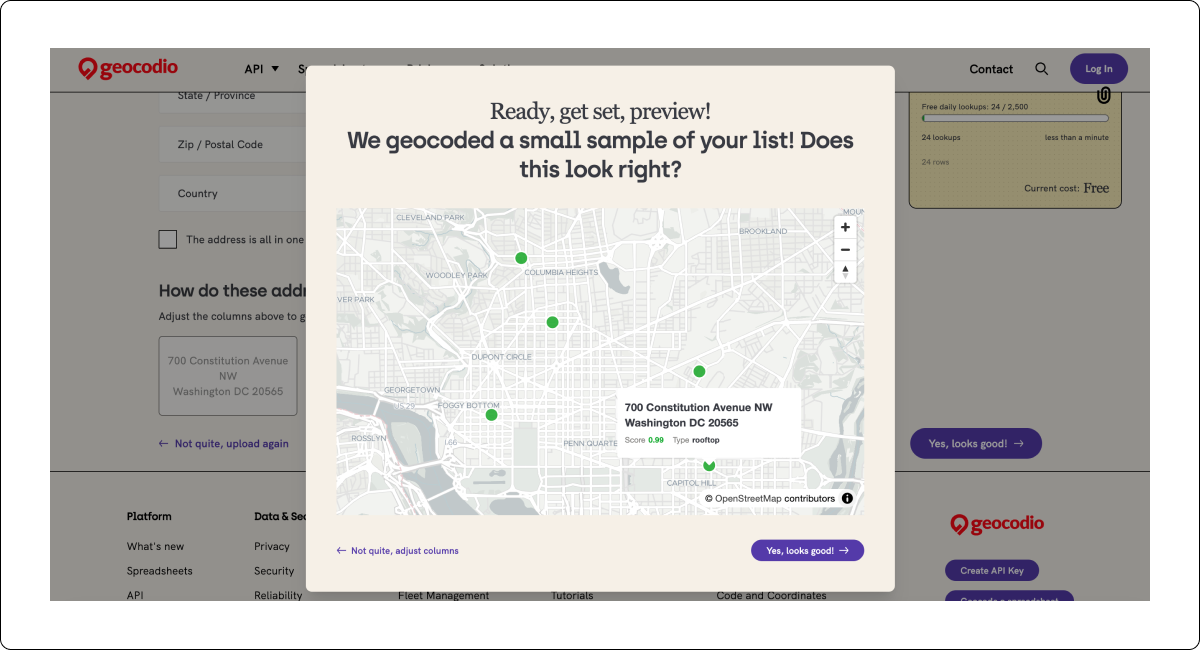
Click "Yes, looks good!" (Step 3) and we'll geocode a small sample (usually a handful of rows) and pop open an interactive map.
Pan, zoom, click a pin to see the matched address, the score, and the match type (rooftop, range interpolation, etc.)
Step 5: Pick your data appends
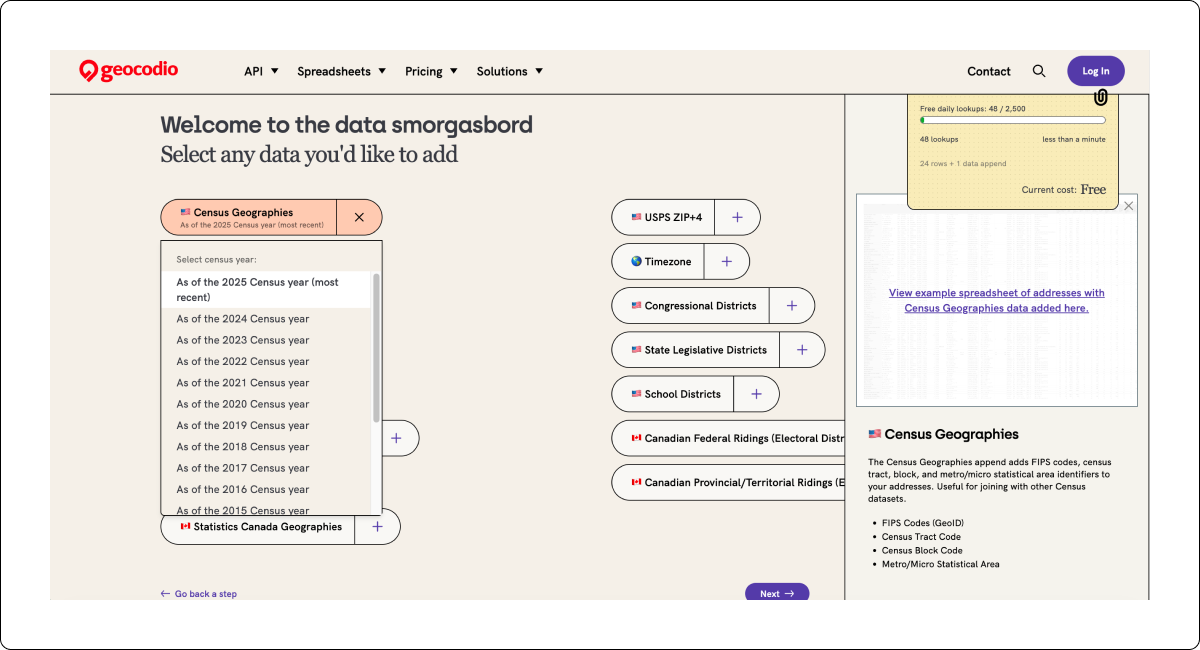
You'll see each available append: Census Geographies, Census: Income, Timezone, Congressional Districts, USPS ZIP+4, School Districts, Canadian Federal Ridings, and more. Click once to add it. Click again to remove it.
When you select an append, a side panel will slide in with details: what the append returns (FIPS Codes, Census Tract Code, Census Block Code, etc.) as well as a link to the relevant Guide with a full list of what you’ll receive and a sample results spreadsheet.
For data appends like Census Geographies, a selector will appear so you can pull data as of a specific Census year (handy when you're matching against historical datasets). For Congressional and state legislative districts, you’ll also see a checkbox to add legislator data for free.
What's new
The old flow showed all appends as long checklists with bullet points inside each card, which quickly overwhelmed the page. The new pattern lets you scan the options quickly to find the ones you're interested in.
We regularly add new data appends, and this gives us space to do so the future.
Step 6: Create an account and finalize
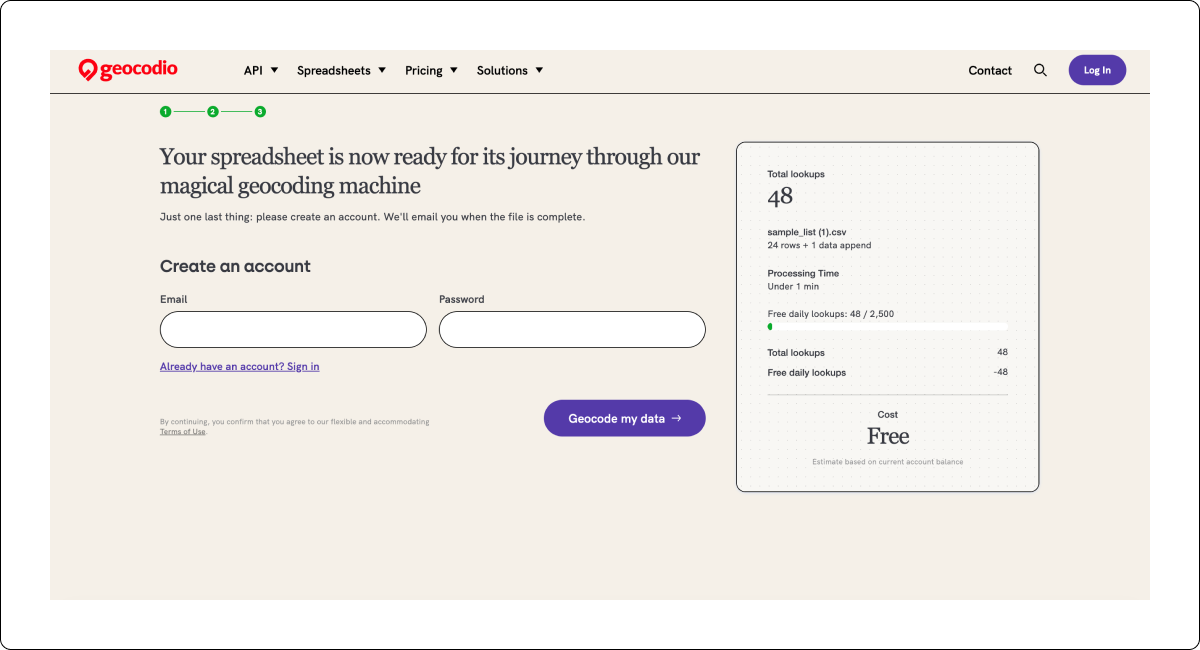
Last step before Geocodio runs the job. You'll see a "Your spreadsheet is now ready for its journey through our magical geocoding machine" message alongside a summary card on the right showing total lookups, processing time estimate, free daily lookups remaining, and final cost.
Pop in your email and password, add your billing information if necessary, hit Geocode my data, and you're done. Use the Sign in link if you already have an account.
As before, if this is your first time uploading a file, you’ll be prompted to confirm you email address in order to access the dashboard. Don’t fret—we’re still geocoding your file.
What's new
The cost summary card is visible the entire time so you'll always know exactly how much it will cost.
Previously, we had a running total in a banner along the bottom of the upload flow, and we wanted to make the potential cost even clearer.
Step 7: Download your geocoded file
We'll email you when your spreadsheet has been geocoded.
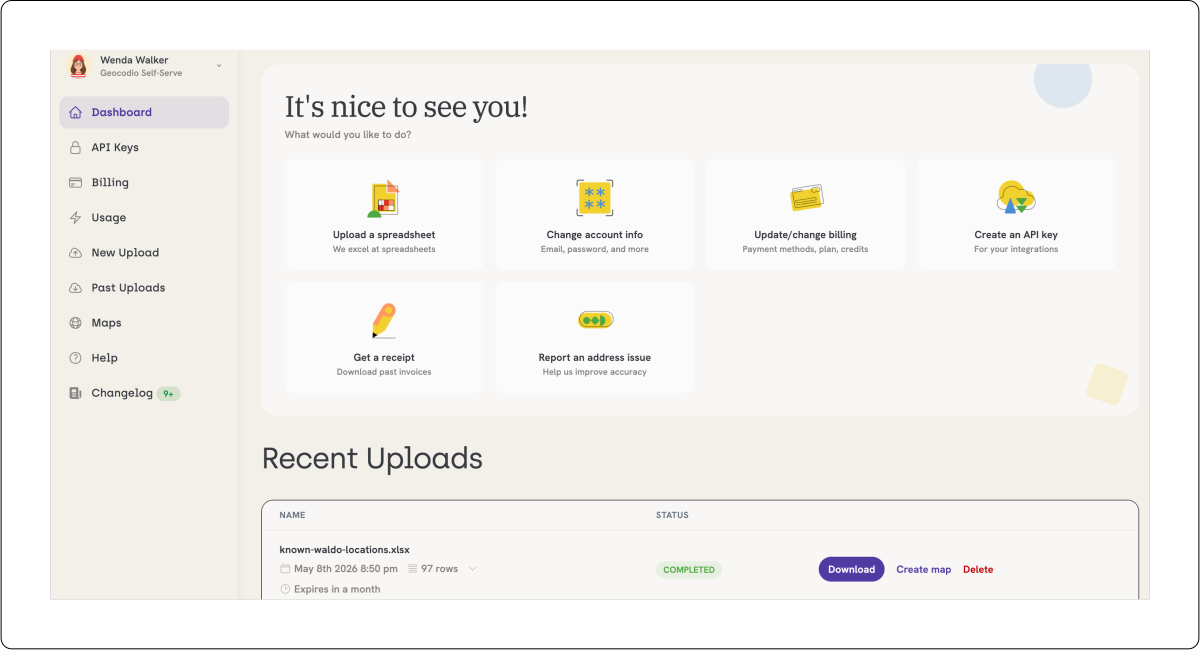
You can go straight to your dashboard, where Recent Uploads shows the file with a Download, Create map, and Delete option.
Frequently asked questions
Can I paste a list instead of uploading a file?
Yes! The Copy & Paste option is available from the first screen, next to the file upload card.
This option is useful when you're working from a Google Sheet or just want to test a handful of addresses.
What types of spreadsheets can I geocode with Geocodio?
The same as the old flow: csv, tsv, xls, xlsx, and odt.
These are the most common file types. If you’re able to open your file in Excel, you’ll be able to upload it to Geocodio.
How do I format my spreadsheet?
We have a full guide on how to format your spreadsheet of addresses or coordinates for geocoding with Geocodio.
Who can I talk to if I need help?
Feel free to reach out to us at [email protected] if you have questions. You’ll always get a person on the other end.