
Guides
for everything Geocodio
Guides
Create a Map
Guides
for everything Geocodio
Create a Map
Using Geocodio, there are two different methods to create a map.
Directly from Spreadsheet
When reviewing your uploaded spreadsheets - either in the Recent Uploads or Past Uploads section of your dashboard - you'll see a number of buttons that allow you to interact with them - including "Download," "Preview," "Delete," and "Create Map."
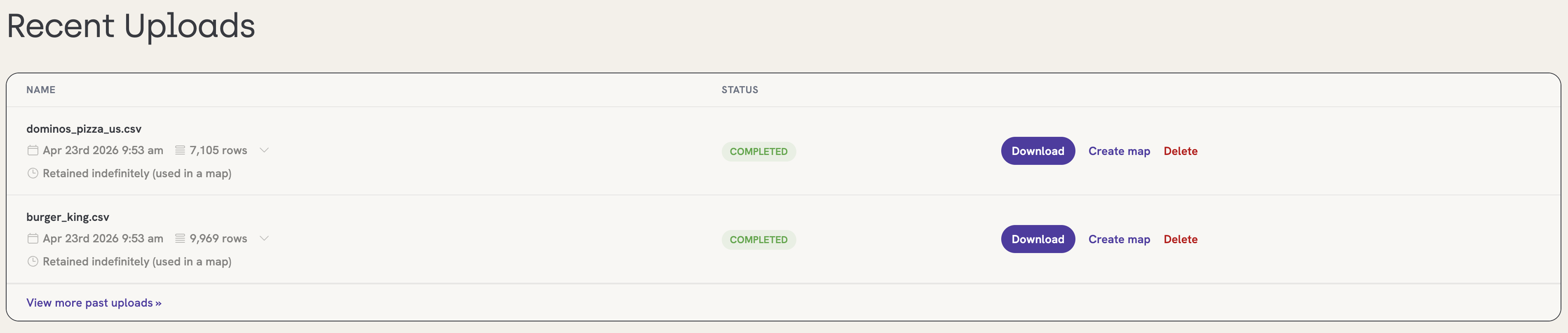
If you click "Create Map," we will automatically generate a map using the data provided in the spreadsheet. You can elect to add the spreadsheet to an already existing map or create a brand new one from scratch.
Retention period
When a spreadsheet is associated with a map, it will not automatically delete at the end of its standard retention period (72 hours for Enterprise, 45 days for Self-Serve). Spreadsheets associated with maps will remain available in your account until the map has been deleted.
From the Geocodio Maps Tab
Select the "Maps" tab in your account dashboard and you'll be taken to the Geocodio Maps menu. Once there, click on the "Create a Map" button.
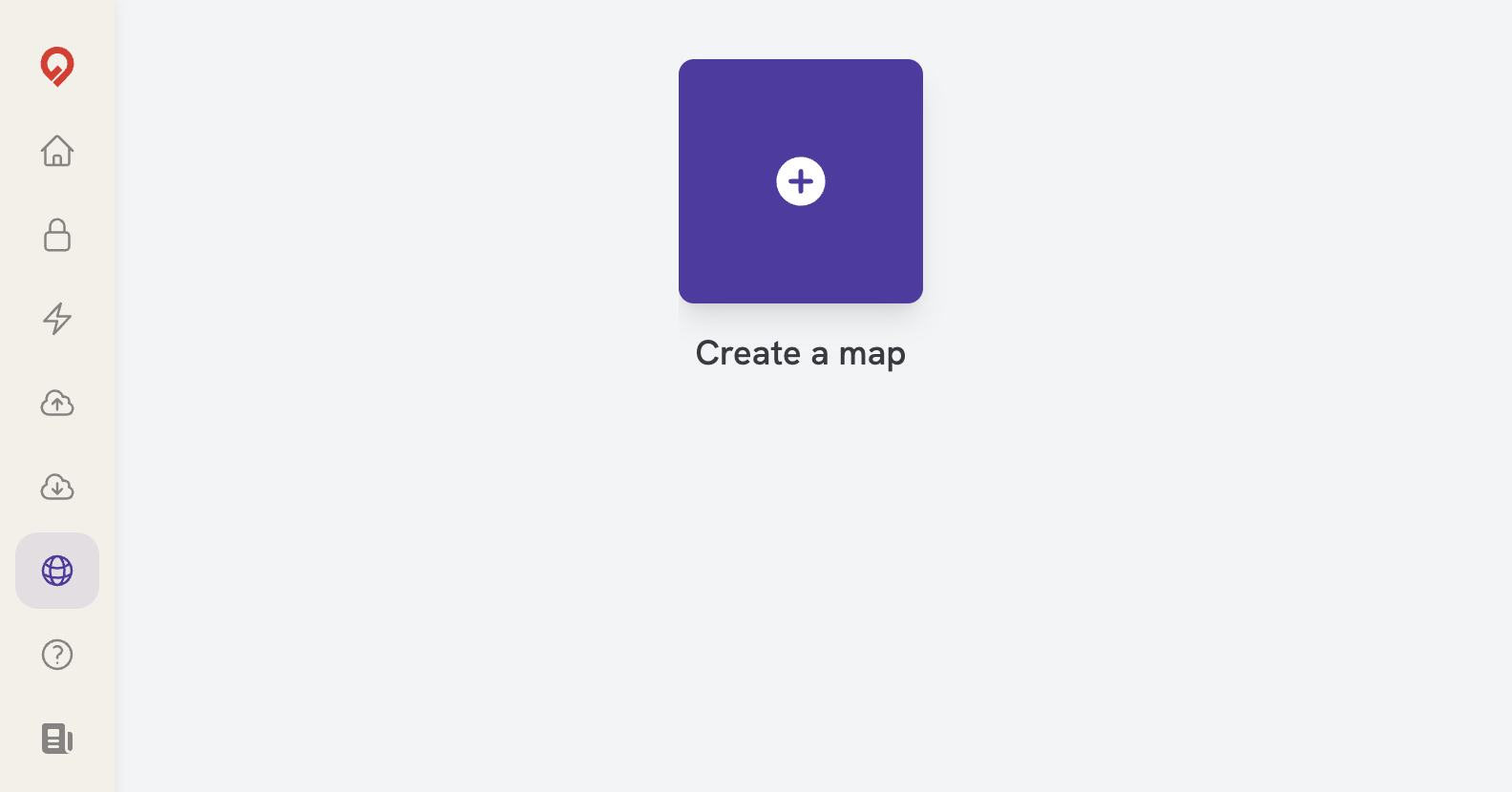
If it's your first time, you'll receive a quick welcome screen with the option to "Get Started" and select a spreadsheet to map.
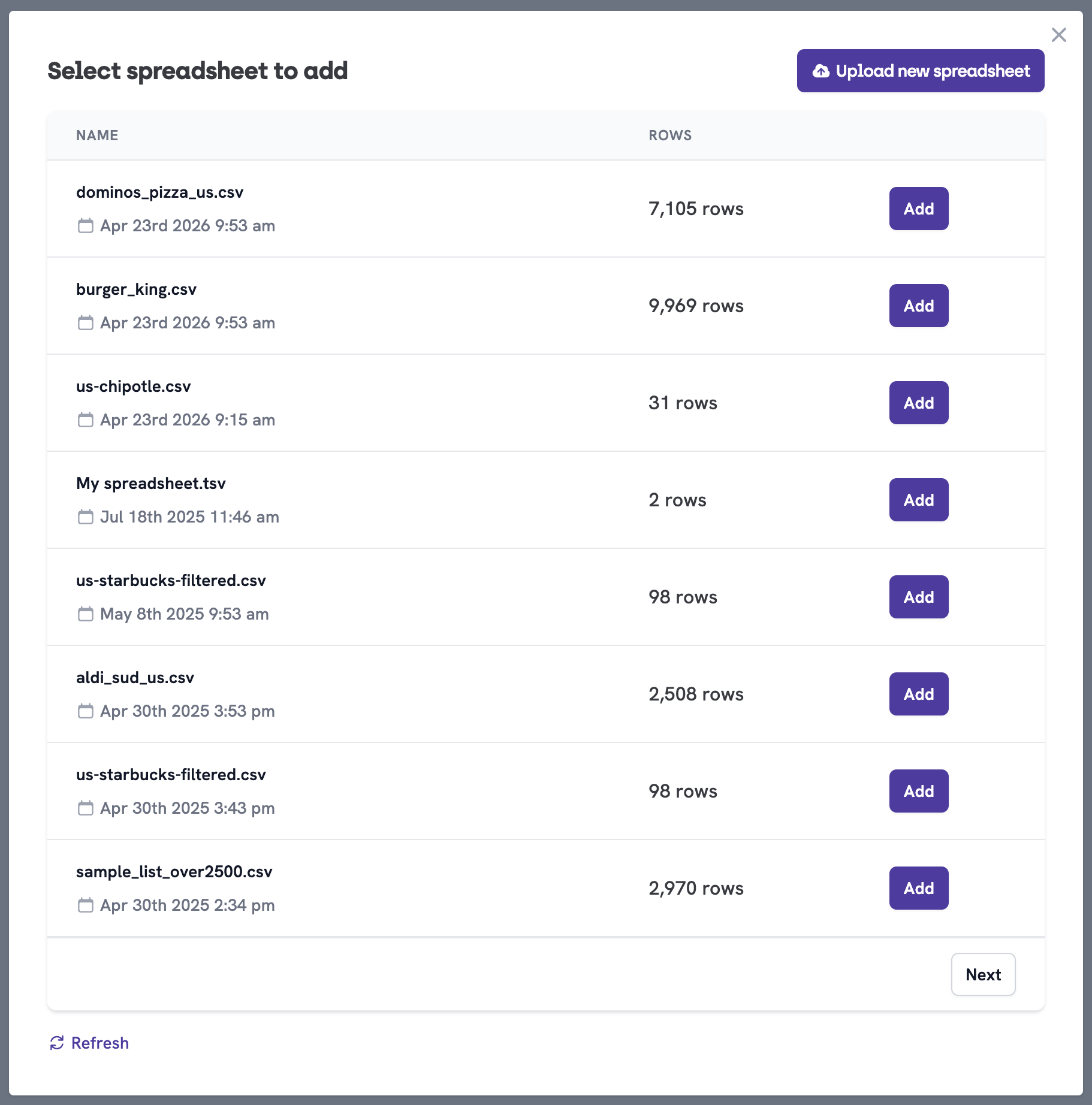
You'll see a list of all of your existing spreadsheets. All you have to do is click the "Add" button next to the intended document and the records will be loaded onto the map.
You can also add a new spreadsheet by clicking the "Upload New Spreadsheet" button.
Then you'll be taken directly to your new map.
You'll see the spreadsheet loaded on the left side of the screen—and the default markers for your addresses/coordinates on the right side of the screen.
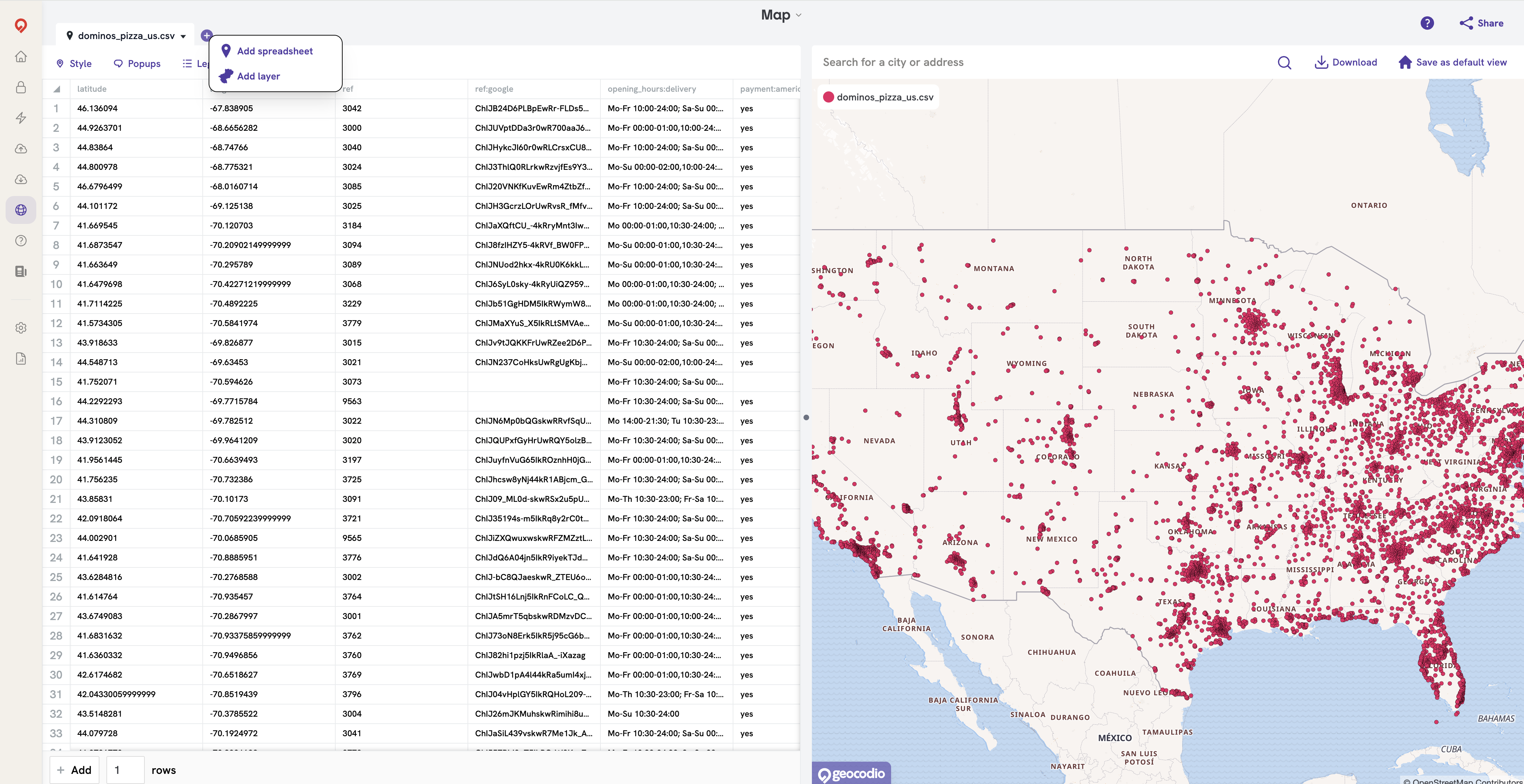
Click the plus button on the top left-hand side of the screen and a menu will open with a couple of options:
Add Spreadsheet: Allows you to upload an existing spreadsheet and map the points contained within.
Add Layer: Allow you to add a data layer of polygonal borders on top of your map. This includes such options as states, Congressional districts, counties, school districts, etc.